Multiple question types
Combine single and multiple choice, true/false, text, fill-in-the-blanks, ordering, matching and classification in one assessment.
Explore quizzesCREATE / INTERACTIVE COURSES
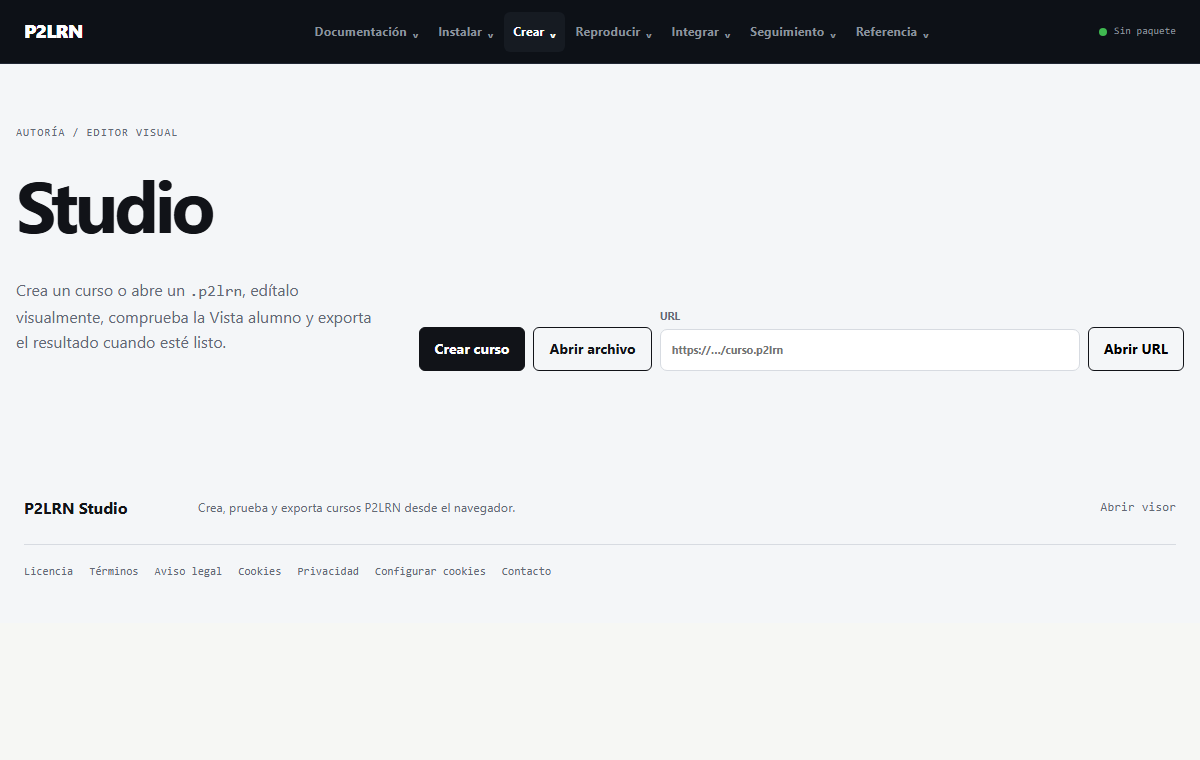
P2LRN Studio brings together lessons, activities and learner view in one visual editor. You can prepare a course, test it, and export it as a .p2lrn package to play with Player.
FROM EDITOR TO COURSE
In Studio, press “Create Course” and organize the units and lessons that the learner will see.
Edit text and images from the interface and use “Add Content” to add tests and compatible games.
Toggle between editing and learner View to review the output before distributing it.
Download the .p2lrn file and open it with Player or integrate it into the target environment.
KEY FEATURES
Combine single and multiple choice, true/false, text, fill-in-the-blanks, ordering, matching and classification in one assessment.
Explore quizzesAdd memory games, word search, crosswords, word wheels and compatible 3D ordering, matching and classification activities.
Explore gamesSet completion requirements and minimum scores; offline deliveries support dates, attempts and resumption.
Read progression guidePRACTICAL EXAMPLE
Build this learning sequence in Studio without editing code: one lesson, one assessment and a learner preview before sharing the file.
Create a “Digital safety” unit with a lesson on strong passwords, suspicious links and account protection.
Build the lessonUse a single-choice question, a true/false question and a step-ordering question. Review them together as one quiz.
Configure the assessmentSwitch to the learner view, check navigation and grading after submission, then export the .p2lrn file for Player.
Play the courseFREQUENTLY ASKED QUESTIONS
No. Open P2LRN Studio in your browser to build units, lessons and activities, then download a .p2lrn file without installing Moodle or another LMS. Server-side saving, user accounts and official grades require services provided by your own platform.
Native quizzes support single and multiple choice, true/false, text answers, fill-in-the-blanks, ordering, matching and classification. Studio lets you combine several questions into one assessment and check the learner view before exporting.
Yes. Studio supports offline Windows deliveries as a .p2lrn-offline.exe and a portable ZIP alternative. Learners run the bundled content and return a .p2lrn-result file. Activities that depend on remote services or live collaboration cannot run fully offline.
Yes. A .p2lrn file can include lessons, quizzes, memory, matching, ordering, classification, word search, crossword, word wheel and compatible 3D activities. Player chooses a suitable presentation without dropping questions to fit a game.
On a website, embed <p2lrn-player>. For LMS use, P2LRN documents an external LTI 1.3 tool for Moodle, Canvas and Sakai, with version-dependent integration paths for Chamilo and Open edX. An administrator must register the provider and test launches on the actual LMS; this is not automatic SCORM import.
Yes. Course progression can require completion and minimum scores. Offline assignments can define attempts, availability dates, deadlines and resumption; clock-based limits depend on the learner's device clock. Offline results are informative and do not automatically become official LMS grades.
NEXT STEP
Open the viewer to check a package or view delivery instructions for learners without an educational platform.